Basic Login Functionality and Passing Data Between Pages
Instructions
This lab will focus on a login screen with 3 different users. All of the information
will be hardcoded. For this lab, the login ID and password will be hardcoded. Later, we will learn how to connect this login.php page to a database
to verify user information, but not in this lab.
Use Dreamweaver to complete the coding and aesthetics of the site. Dreamweaver is an excellent tool for writing PHP.
The purpose of this lab is to get you familiar with the $_POST and $_GET variable collections. It also leads us up to our upcoming topics of database driven applications.
The concepts you master in this lab will be used again throughout this course.
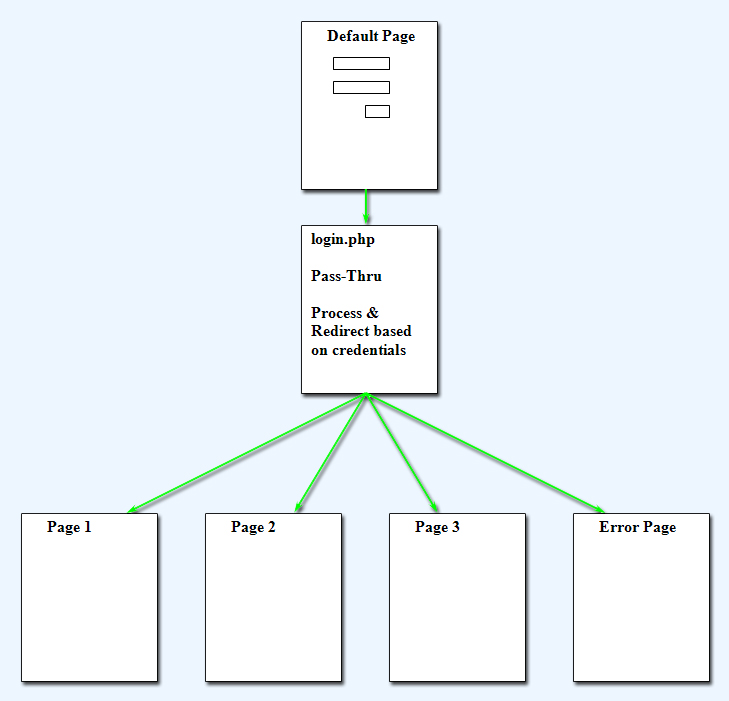
Below is a diagram depicting the flow of information (click to enlarge):
Materials to turn in on the server:
- In your Assign02 folder:
- index.php
- login.php
- page1.php
- page2.php
- page3.php
- error.php
<%
For i=1 to 123
%>
 <%
Next
%>
<%
Next
%>
Exercise Specifications
- View this example finished solution
- Create a folder named Assign02
- Use this folder as your local storage as well as the folder on
your server when you upload it.
- You must type the URL in a browser to properly view your pages, here is an example of what your URL address should be in order to navigate to this lab:
http://cgtweb2.tech.purdue.edu/356/<yourFolder>/Lab02/index.php
- index.php (page containing login and password boxes)
- Login & Password boxes
- Input elements should have at least: name, id, type, size, maxlength
- Use label elements appropriately with form elements (for accessibility)
- Use JavaScript to set the focus to the userID/login text field
- When the form is submitted, the form data gets sent to the login page
- login.php (verification & redirection) (this is called a "Pass-Through" page or "Processing" page)
- Note: in lab you will walk through 3 different if...else structures that do the same thing
- If login = page1 and password = alpha
- If login = page2 and password = beta
- If login = page3 and password = gamma
- The login and password must both match exactly,
- Else Redirect to error.php
- page1.php
- No HTML... All Encapsulated (i.e.: use echo)
- Welcome to the Alpha page
- Escape double quotes using \"
- Add new lines to the resulting HTML using \n
- Decorate to your choosing (nothing extensive... color, an image... something)
- page2.php
- No HTML... All Encapsulated (i.e.: use echo)
- Welcome to the Beta page
- Escape double quotes using \"
- Add new lines to the resulting HTML using \n
- Decorate to your choosing (nothing extensive... color, an image... something)
- page3.php
- No HTML... All Encapsulated (i.e.: use echo)
- Welcome to the Gamma page
- Escape double quotes using \"
- Add new lines to the resulting HTML using \n
- Decorate to your choosing (nothing extensive... color, an image... something)
- error.php
- Simple HTML page
- Blanket statement similar to a 401 message (not authorized)
- Link back to index page so the user can try logging in again
- Code
- Here is the code for this entire exercise. Proper use would be: look at the code to make sure you are approaching the assignment the correct way. Then try to do it on your own. Then use the code to make sure you've done it correctly. Improper use would be: copying without interpreting, which would result in not really learning what you're doing. The code is provided to help you be successful and so that you don't have to ask as many questions about the assignment.
- index page code
- login page code
- error page code
- page1 code
- page2 code
- page3 code
- Make sure it works on the server!!!
- Save a backup copy to your personal drive space.
- Do not modify any files after the deadline. Timestamps on all files will be checked during grading.
Validation & Accessibility
- Validate your pages using (a) Dreamweaver and (b) the HTML Validator add-on for Firefox. Fix any
errors before turning in.
- Pre-rendered HTML: Use Dreamweaver built-in page validation
- Post-rendered HTML: Firefox: View source _or_ Icon on bottom / status bar > Double click for details
- Using only Dreamweaver is not good enough
- Always fix the error on top first. Only fix one or two errors at a time. Many times, fixing the top error fixes errors below it.
- Check for JavaScript and CSS errors using the Web Developer toolbar in Firefox.
- Make sure there is a green check for (a) Standards Compliance Mode, (b) CSS, and (c) JavaScript
- Check accessibility issues using the Accessibility Extension add-on for Firefox. Fix failures before turning in.
- Accessibility > Reports > Accessibility Issues
- Validate against FAE rule set
- This will not fix all accessibility issues, but it is a very good start.
Grading Rubric
| Coding / Does it work |
6 pts |
| Aesthetics |
2 pts |
| Validate / Accessibility |
2 pts |
| Total |
10 pts |
|